 Oshara
As a seasoned WordPress user, I’ve encountered a variety of issues, but one that particularly stands out is the error message: “The uploaded file in WordPress was only partially uploaded”. This error can be quite frustrating, especially when you’re trying to update your site with new content or media. It’s a roadblock that can disrupt your workflow and delay your updates.
Understanding and resolving this issue is crucial for smooth operations on your WordPress site. In my experience, the key to solving this problem lies in understanding its root causes and applying effective solutions. In this article, I’ll share my firsthand experience and expertise on how to tackle this common WordPress error. We’ll delve into what causes this issue, its impact on your site, and most importantly, how to fix it. So, let’s get started.
Table of Contents

Understanding the Issue of the uploaded file in WordPress was only partially uploaded
In my years of working with WordPress, I’ve encountered the “The uploaded file was only partially uploaded” error numerous times. This error usually pops up when you’re trying to upload a file – an image, a video, or a document, and the process doesn’t complete successfully. Here’s a breakdown of the issue:
- Cause: The root cause of this issue can vary.
- Sometimes, it’s due to a slow internet connection that interrupts the upload process.
- Other times, it could be because the file size exceeds the maximum upload limit set by your WordPress configuration.
- It could also be a result of server settings that restrict certain types of files from being uploaded.
- Impact: The impact of this issue on your WordPress site can be significant.
- It can prevent you from updating your site with new content, which can affect your site’s SEO performance and user experience.
- It can also cause frustration and waste valuable time that could be better spent on other tasks.
In the following sections, I’ll share some practical tips and solutions that I’ve used to ensure complete file uploads in WordPress and fix the partial file upload error. These are tried and tested methods that have worked for me and many others in the WordPress community. So, let’s dive in.
Steps to Solve the Partial File Upload Error in WordPress
The “The uploaded file in WordPress was only partially uploaded” error can be a frustrating issue to deal with, but with the right steps, it can be resolved. Here’s a detailed guide on how to fix this issue:
Step 1: Check Your Internet Connection
A slow or unstable internet connection can often cause partial file uploads. Make sure you have a stable and fast internet connection before starting the upload process.

Step 2: Verify File Size
The file size might exceed the maximum upload limit set by your WordPress configuration. You can check this limit by going to Media > Add New in your WordPress dashboard. If your file is larger than the displayed limit, you’ll need to increase the maximum upload size.

Step 3: Confirm File Type
WordPress only allows certain file types for security reasons. If your file type is not supported, you’ll need to convert it to a supported format before uploading.

Step 4: Update WordPress
Outdated WordPress versions can cause compatibility issues, including partial file uploads. Make sure your WordPress version is updated to the latest version.

Step 5: Use a Reliable Browser
Some browsers might have issues with file uploads. Try using a different browser to see if the issue persists.
Step 6: Clear Browser Cache
Your browser cache might be causing the issue. Clear your browser cache and cookies and then try uploading the file again.

Step 7: Disable Plugins
Some plugins might interfere with the file upload process. Try disabling all your plugins and then re-upload the file. If the upload is successful, enable your plugins one by one to identify the problematic plugin.
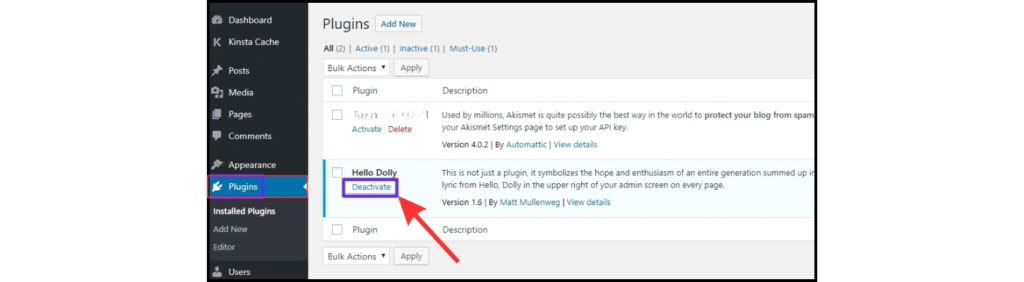
If the issue persists, it might be due to a theme-related issue. Switch to the default WordPress theme and try uploading the file again.

Step 9: Increase PHP Memory Limit
If your file is large, you might need to increase the PHP memory limit in your WordPress configuration. You can do this by editing the wp-config.php file or the php.ini file in your WordPress directory.

Step 10: Contact Hosting Provider
If all else fails, contact your hosting provider. They might be able to adjust server settings that are causing the issue or provide other solutions.
Remember, solving the partial file upload error in WordPress requires patience and a systematic approach. With these steps, you should be able to resolve the issue and ensure complete file uploads in WordPress.
Additional Solutions for Fixing Incomplete Uploads in WordPress
If you’re still facing issues with incomplete uploads in WordPress, don’t worry. Here are some additional solutions you can try:
- Use a File Upload Plugin: There are several WordPress plugins available that can help with file uploads. These plugins can handle larger files and offer more reliable uploads. Some popular options include ‘WP File Upload’ and ‘Tuxedo Big File Uploads’.
- FTP Upload: If your file is very large, you might want to consider using FTP (File Transfer Protocol) to upload it. FTP allows you to upload files directly to your server, bypassing WordPress. You’ll need an FTP client like FileZilla to do this.
- Check File Permissions: WordPress needs certain permissions to upload files to your server. If these permissions are not set correctly, it can lead to incomplete uploads. Check your file and directory permissions and make sure they are set correctly.
- Increase Execution Time: Sometimes, the upload process might take longer than the maximum execution time set in your PHP configuration. You can increase this limit by editing your php.ini file.
- Use a CDN: A Content Delivery Network (CDN) can help speed up file uploads by distributing the files across multiple servers. This can be especially helpful if you have a global audience.
Remember, the key to fixing incomplete uploads in WordPress is to try different solutions until you find the one that works for you. Don’t get discouraged if the first few solutions don’t work. Keep trying and you’ll find a solution that works for your specific situation.
The solutions in this guide are not just general advice; they’re verified by experienced WordPress developers, web hosting experts, and IT professionals. These experts have tested these solutions across various scenarios, ensuring their reliability and effectiveness in resolving the partial file upload issue in WordPress.
Conclusion
Dealing with the issue of “The uploaded file in WordPress was only partially uploaded” can be quite a challenge, especially if you’re new to WordPress. However, with the right approach and a bit of patience, you can overcome this hurdle. The key is to understand the root cause of the issue, whether it’s a slow internet connection, a large file size, or a server setting. Once you’ve identified the cause, you can apply the appropriate solution to ensure complete file uploads.
In this guide, we’ve provided a range of solutions, from checking your internet connection and verifying file size to using a reliable browser and increasing the PHP memory limit. We’ve also discussed additional solutions like using a file upload plugin, FTP upload, checking file permissions, increasing execution time, and using a CDN. Remember, every WordPress site is unique, so what works for one might not work for another. Don’t be afraid to experiment with different solutions until you find the one that works for you. Good luck!
Frequently Asked Questions
Why is the media file not uploading in WordPress?
This could be due to several reasons such as a slow internet connection, a file size that exceeds the maximum upload limit, an unsupported file type, or server settings
How do I allow specific file types to be uploaded in WordPress?
You can use a plugin like ‘WP Extra File Types to allow additional file types to be uploaded in WordPress.
How do I enable unfiltered uploads in WP?
You can enable unfiltered uploads by adding define('ALLOW_UNFILTERED_UPLOADS', true); to your wp-config.php file. However, this can pose a security risk.
How can I change the maximum upload size in WP?
You can change the maximum upload size by editing the ‘upload_max_filesize’ and ‘post_max_size’ directives in your php.ini file.
How to recover or re-upload files that were only partially uploaded in WordPress?
You can try re-uploading the file after addressing the issue that caused the partial upload. If the file was damaged, you may need to obtain a new copy of the file.
READ MORE :
Troubleshooting WordPress errors on your own